Overview
Review Cycle runs your team's periodic evaluations inside Jira Cloud: monthly, quarterly and probation reviews for a technical team. Each sheet opens one evaluation per member per period on its own calendar; each evaluation is filled in beside the Jira work the person did in the period; and the Dashboard reads the result, naming how many people every figure counts and who it leaves out.
- Sheets and cycles: Monthly, Quarterly and Probationary ship ready, and an administrator can add more; each opens its evaluations by itself on its opening day
- Filling in: one block per screen, one click per answer, saved as you go, beside the person's Jira work in the period
- Dashboard: averages, your site's bands, evolution by team, and the people kept out of every average, named
- Signals: each shows its figure, its threshold and why you see it
- Probation reviews: tied to the person's end date, ending in a verdict, never a number
- My work and notifications: each evaluator knows what they owe
- AI Studio and Rovo: prompts with names pseudonymised, and a Rovo agent on team figures only
Getting started
Install
- Install Review Cycle on your Jira Cloud site from the Atlassian Marketplace.
- A Jira administrator opens Jira's Global permissions and grants Review Cycle · Use to the group that should open the app. Use opens the app, and nobody holds it until a group is granted it.
- Review Cycle · Administer makes its holders the app's administrators, including who sees which teams and people. It goes to
jira-administratorsby default.
Whoever holds neither permission sees nothing of the app. Somebody who may open it but has no team to see is told so by the app.
The administrator's page
Configuration is reached through Jira: Jira settings, then Apps, then Review Cycle. Only holders of Administer see it. It holds Sheets, Blocks, Questions, Roles, Teams and access, Signals and Rovo; see For administrators.
First cycle
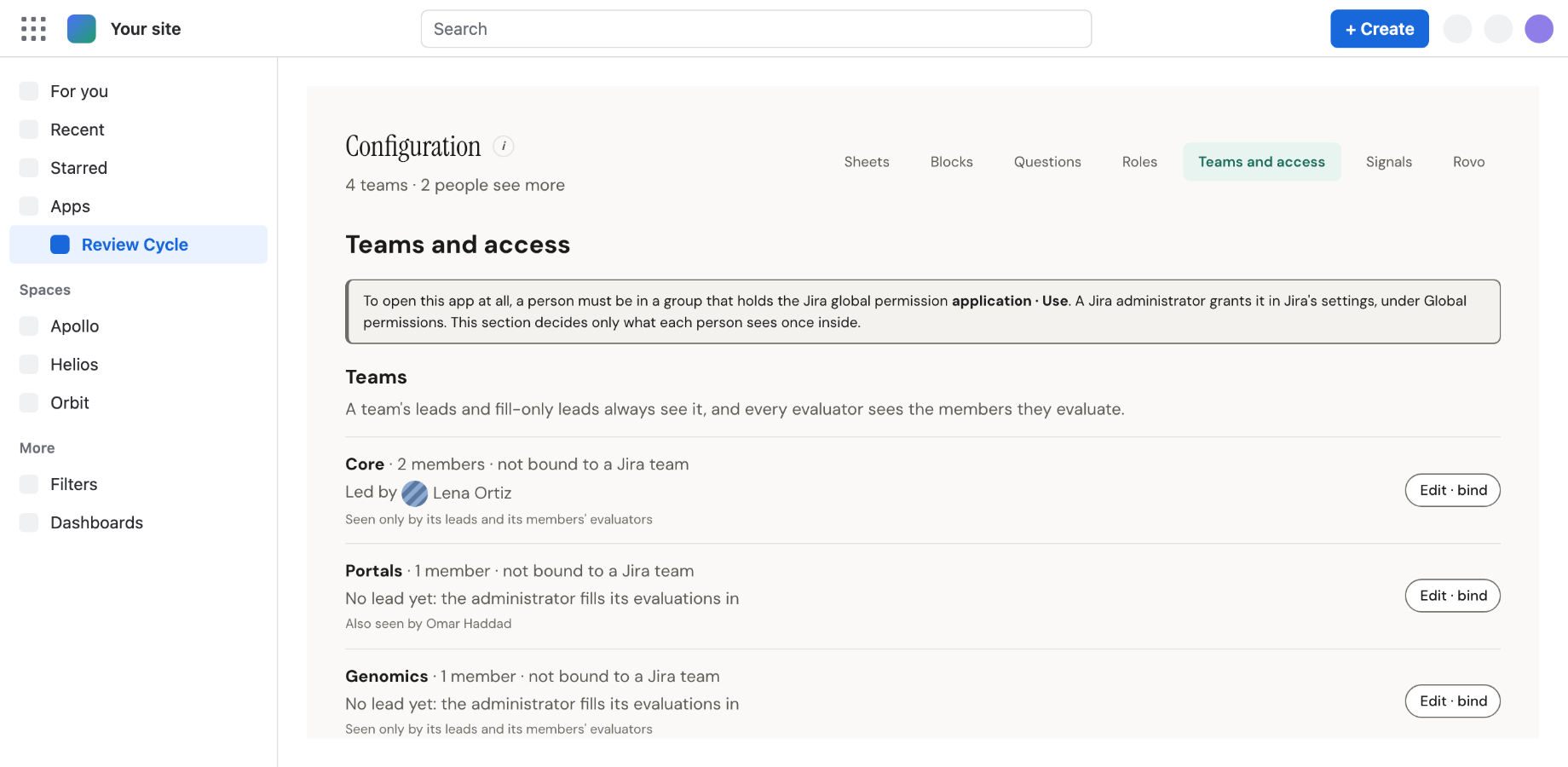
- Under Teams and access, create your teams (a team is one of your site's Atlassian Teams) and name their leads.
- Under Members, enrol each person, picked from Jira's people: their team, role level, roles and evaluators.
- Under Sheets, open the sheet you want to run, check its questions and calendar, and switch it on. On the period's opening day the app creates one evaluation per active member.
Finding your way
Open Review Cycle from Apps in Jira. The app's tabs are:
- My work: the evaluations you owe. The app opens here for whoever has work waiting.
- Dashboard: the result of the range you choose, and what the page notices.
- Evaluations: every evaluation you may see, with its evaluator, filterable by evaluator.
- Members: each person with their team, role level, roles and evaluators, the team's lead first and marked Team lead.
- Cycles: each period of a sheet, and from it the period's Board.
- AI Studio: the review figures prepared as a prompt for the model you choose.
One sheet bar at the top sets the sheet for the whole app. In the header, the bell holds your notifications, Help opens a user manual in a right-hand drawer (each page's ⓘ opens it at that page), and My view lets you choose which tabs you see, in what order, and which one the app opens on.
Sheets and cycles
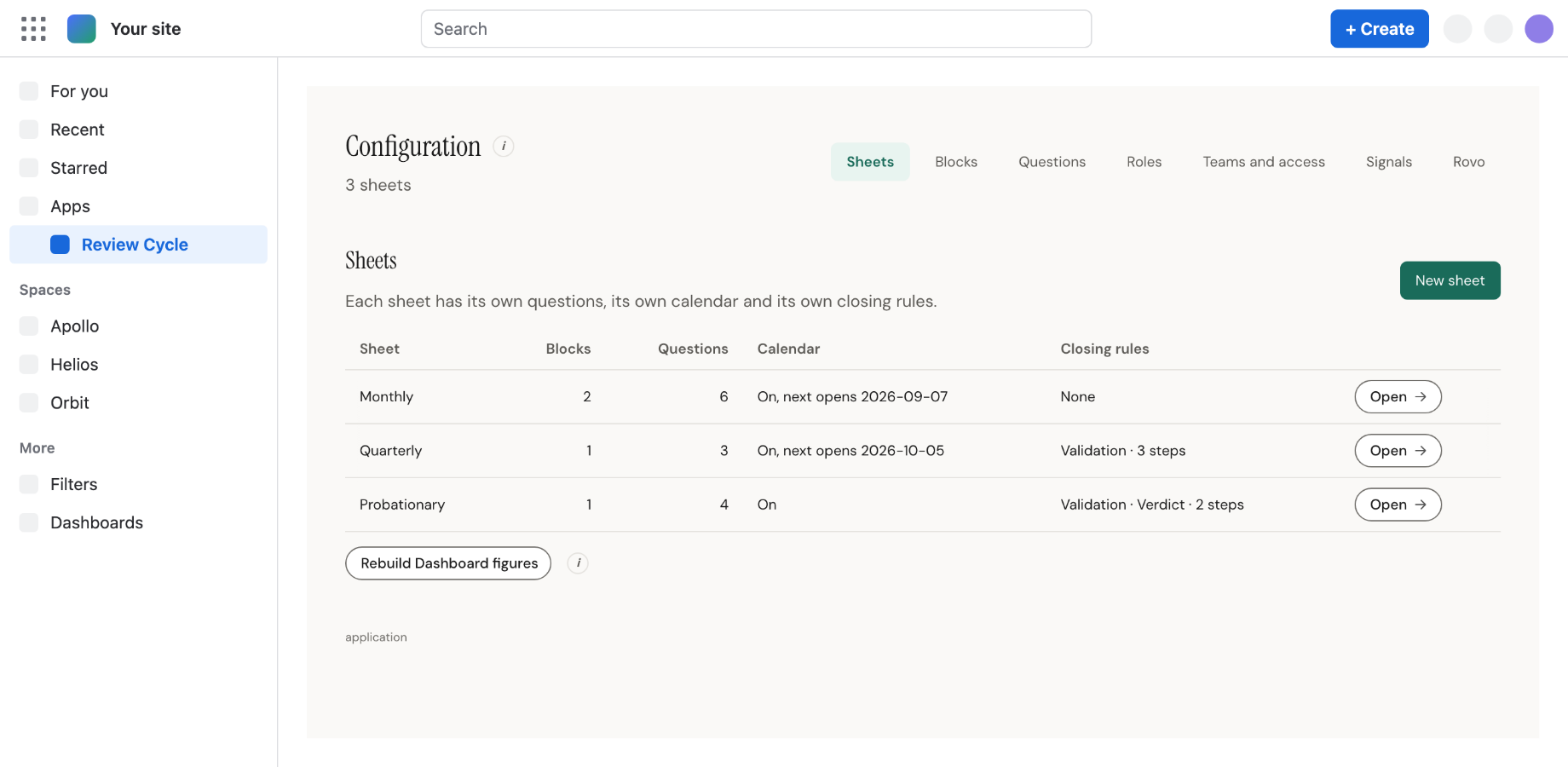
A sheet is one kind of evaluation: its questions, its calendar and its closing rules. Monthly, Quarterly and Probationary ship ready, worded for real, and an administrator can create more, starting from a shipped template or from another sheet.
- A calendar per sheet. Monthly, quarterly, weekly or every N days, in the team's own timezone.
- Evaluations that open themselves. On a period's opening day, every active member gets exactly one evaluation for it, created by the app. An administrator can also generate them on demand, for one member or for everybody.
- Closing rules. Each sheet says whether validation by the administrator is required or exceptional.
- A sheet retires, never deletes.
Cycles and the Board
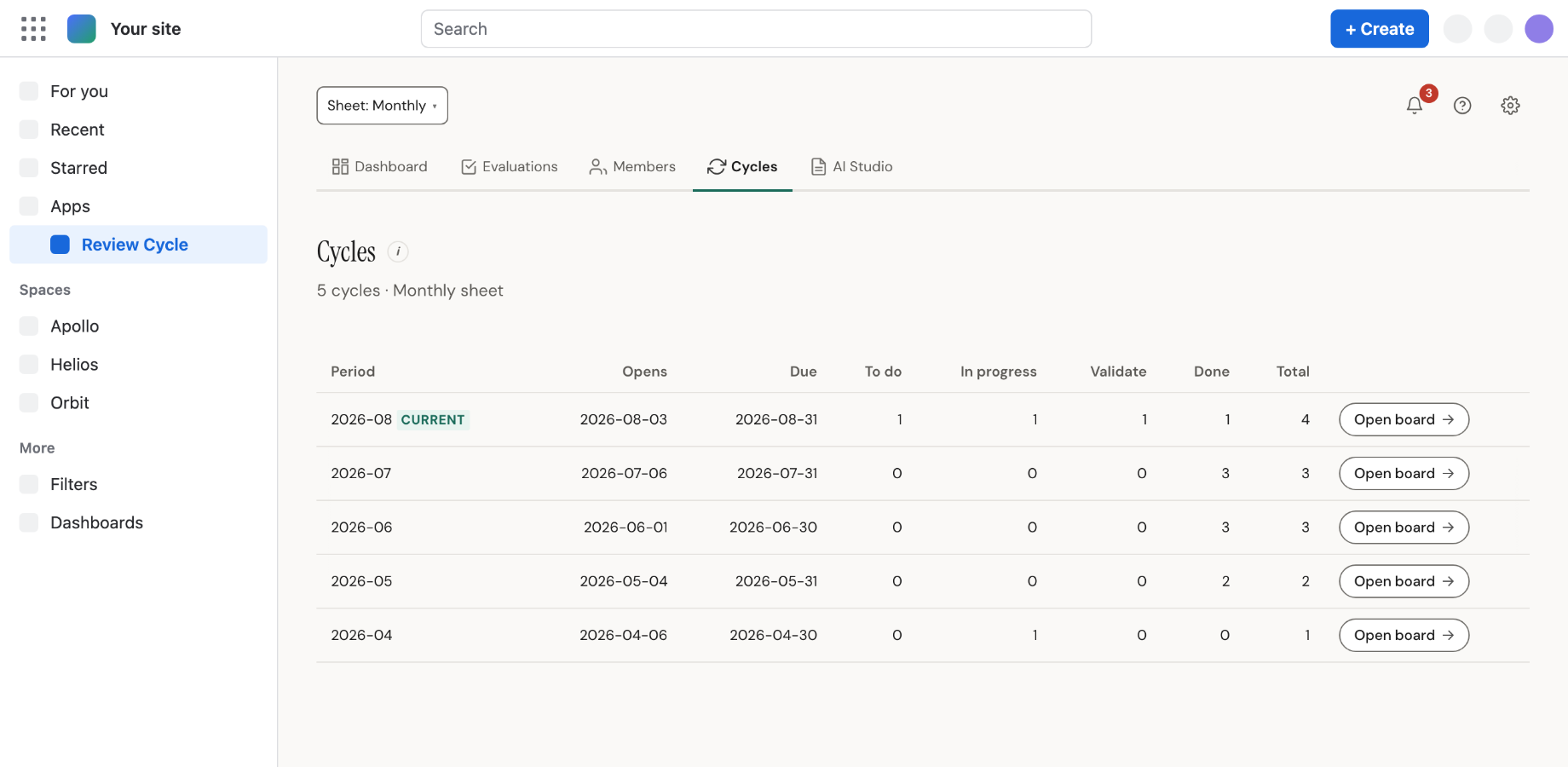
Cycles lists every period of the sheet with its opening day, its due date and how many evaluations are in each state. Open board shows the period's Board: who is To do, In progress, Validate and Done, with each evaluator named, the team averages, and Previous and Next to move between periods. The Board's Watchlist names the people with two or more escalations.
Filling in an evaluation
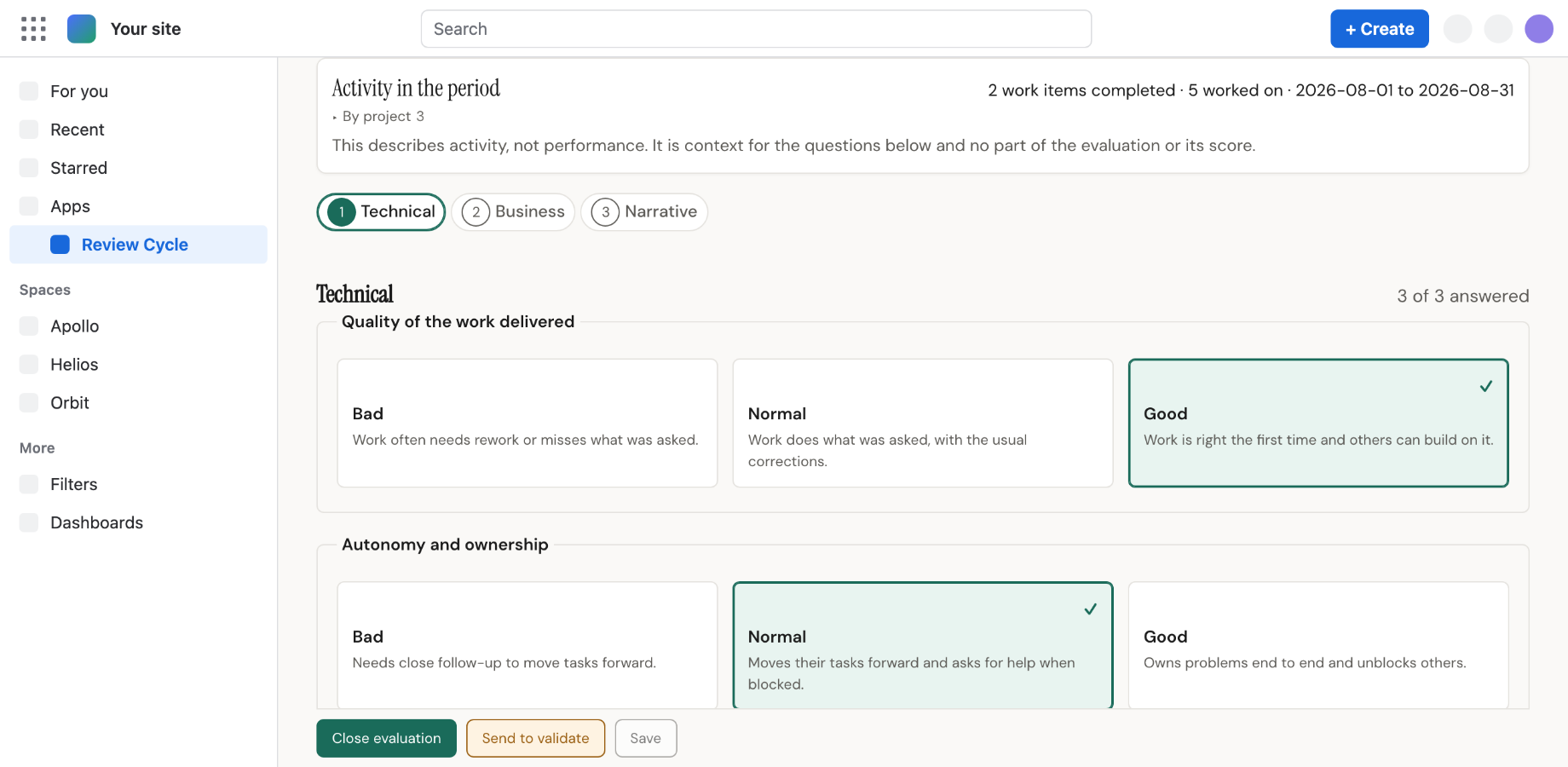
Open an evaluation from My work or Evaluations. It is walked one block per screen (for example Technical, Business and Narrative). Each answer is a card with its rubric, chosen with one click and saved by itself; each block shows how many of its questions are answered.
- Activity in the period. Above the questions, the Jira work the member completed and worked on in the period, per project. It is context, and never part of the score.
- Observations. Dated notes sit beside the form, editable by their author until the evaluation closes.
- One action per state: Save, Close evaluation, or Send to validate.
- Escalations. Sending an evaluation to validate is an act with a written reason, counted on the member as an escalation. Only the administrator validates and reopens.
- Up to five evaluators. A member may have up to five evaluators, each with their own evaluation; the member's result for the period is the mean of theirs. A team's leads are its members' evaluators.
A closed evaluation
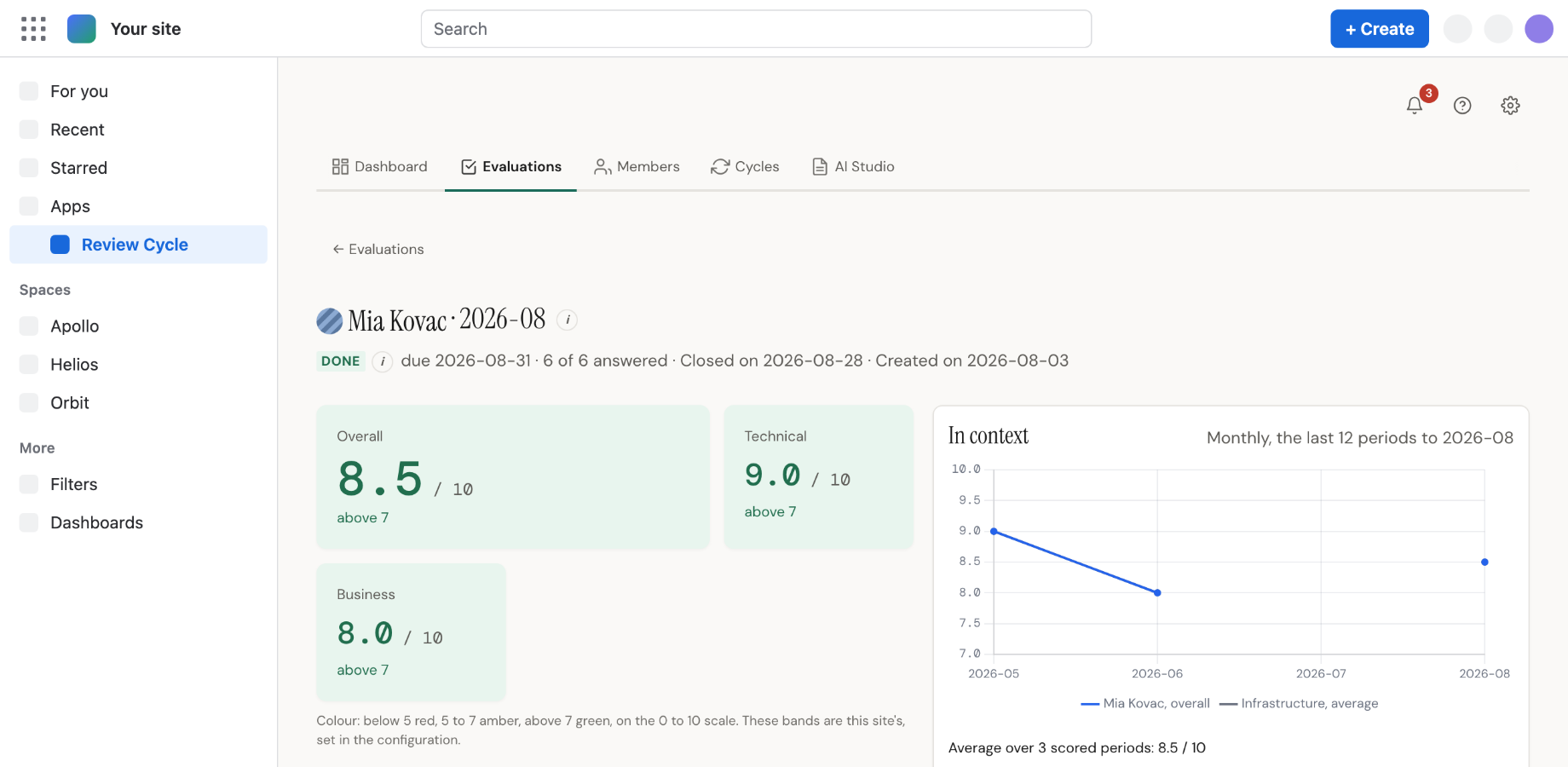
A closed evaluation shows its overall score and each block's in your site's bands, the whole answer sentences, and In context: the person's line against their team over the last periods. A member's page tells their story one list per sheet: period, state, score, verdict and escalation.
Dashboard and signals
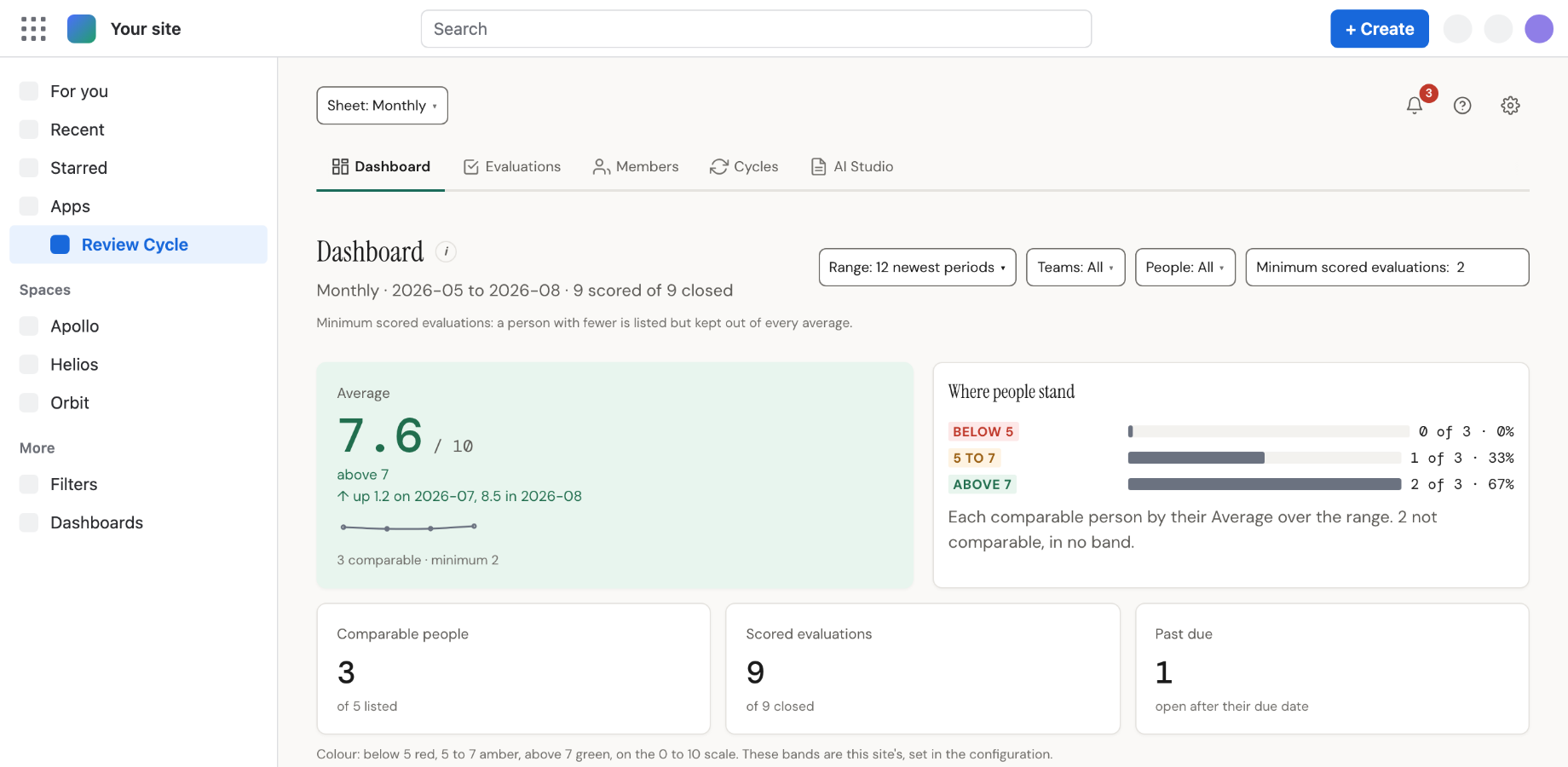
The Dashboard opens on the result of the range you choose. Every figure names the population it counts, for example Monthly · 2026-05 to 2026-08 · 9 scored of 9 closed.
- Average: the range's average, up or down on the period before.
- Where people stand: comparable people placed in your site's bands.
- Tiles: comparable people, scored evaluations, and evaluations past due.
- Evolution: by team or by person over the periods, overall or for one block, with the whole selection's line.
- Teams: each team's average, closed, scored and escalations.
- People: ordered by average as a reading order, not a rank. People with too few scored evaluations are listed apart under Not comparable, kept out of every average, never hidden.
- Export: a CSV of scores and periods, from the Dashboard and the Board. No answer to any question is included.
If the questionnaire changed inside the range, the Dashboard says so.
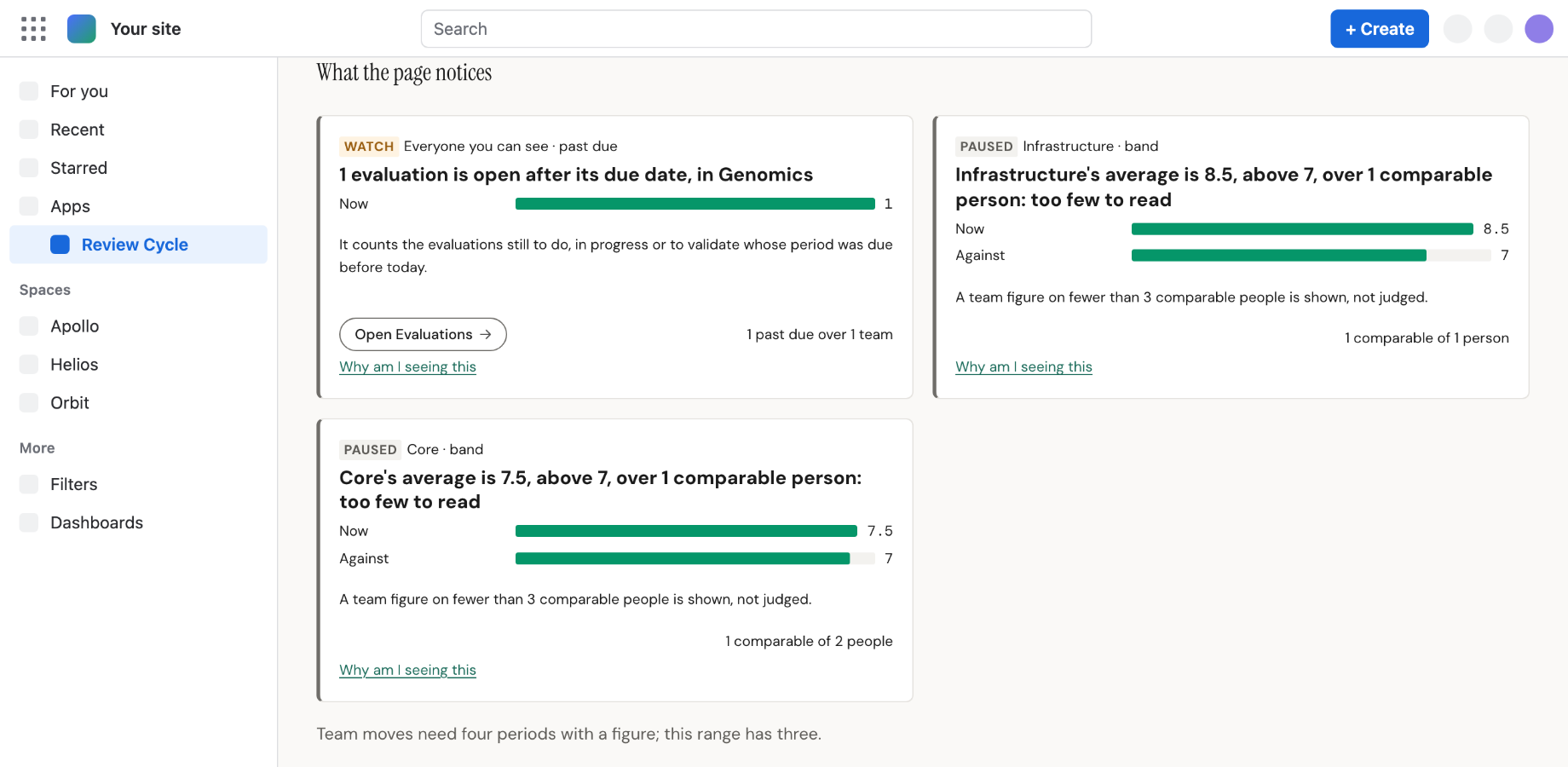
What the page notices
Above the figures, a handful of signal cards about teams: a team moving away from its own past, evaluations past due, escalations gathering, or a team figure on too few people, shown but not judged. Each card shows the figure now against its threshold, a plain reading, a jump to the figure that proves it, and Why am I seeing this. A member's page carries the same about that person. Every threshold is your site's, set by the administrator under Configuration, Signals, and is the same for every reader.
Probation reviews
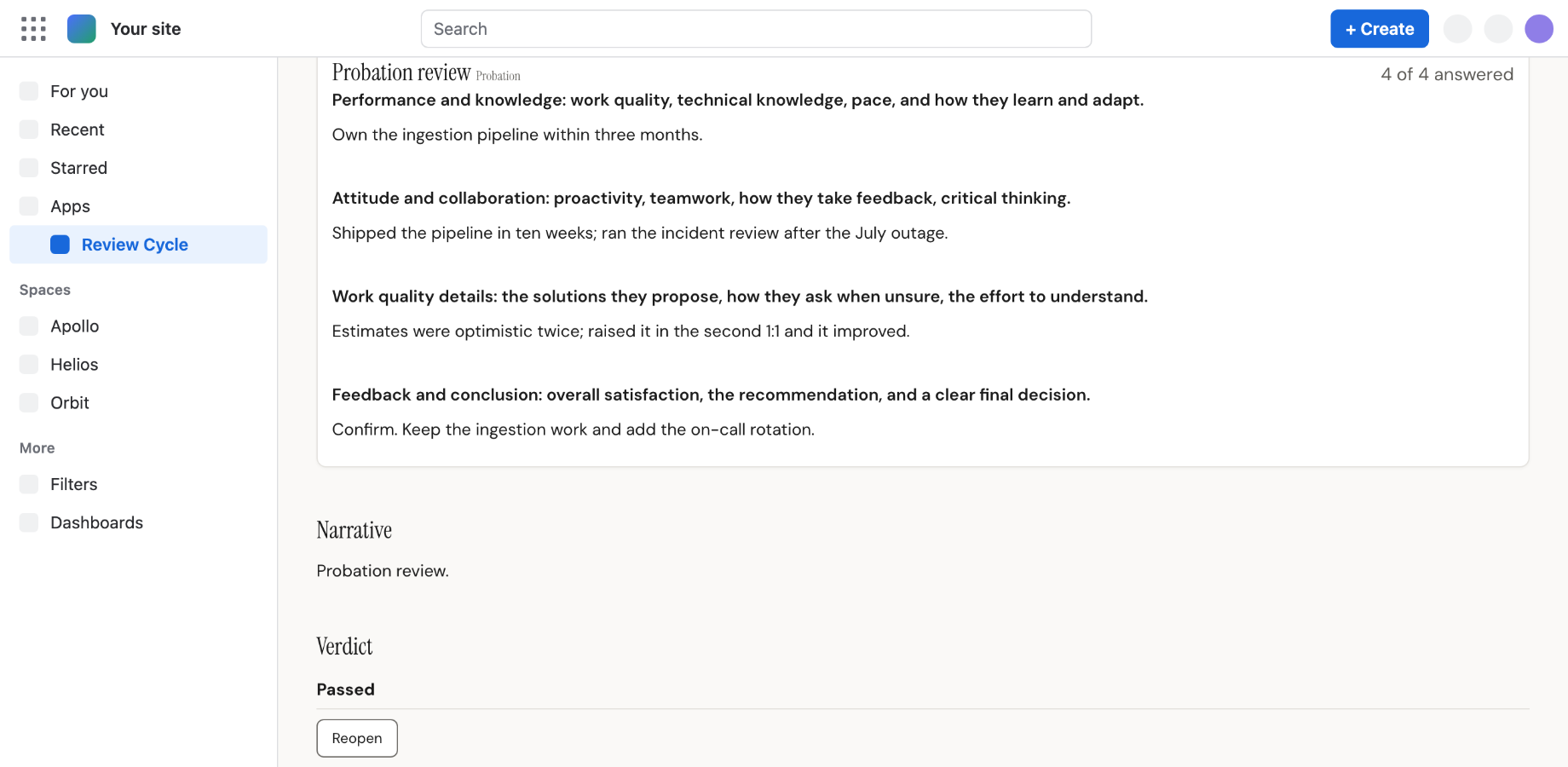
The Probationary sheet has no period. Its evaluation is created when somebody joins, and follows that person's end date:
- The End Date is required, and the app says so before it becomes a problem.
- The review waits until a set number of days before the end date; that number is a setting.
- It ends in four written sections and a verdict, Passed or Not passed, never a number, with a report somebody outside the process can read.
- After closure, a checklist the app remembers: for example, the outcome sent to HR and the person told, in person.
My work and notifications
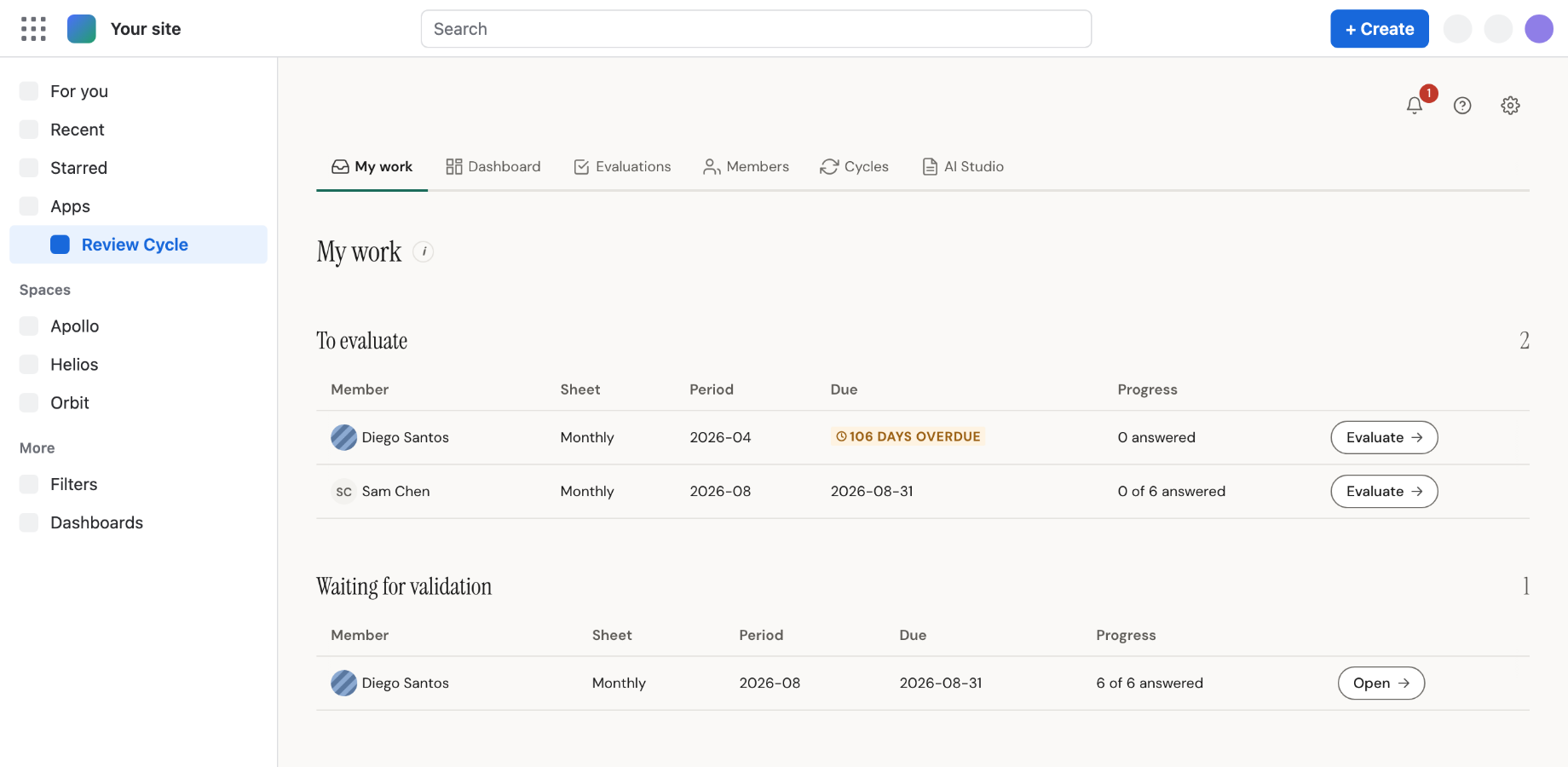
My work shows what you owe on one page, across every sheet: To evaluate, Waiting for validation and Done this cycle. An evaluation's due date reads as a status.
The header's bell counts what is new: an evaluation overdue, one waiting for you to close it, an escalation recorded. Each notification names the member, the sheet and the period. Who is told follows from the evaluation's own record.
AI Studio and Rovo
AI Studio
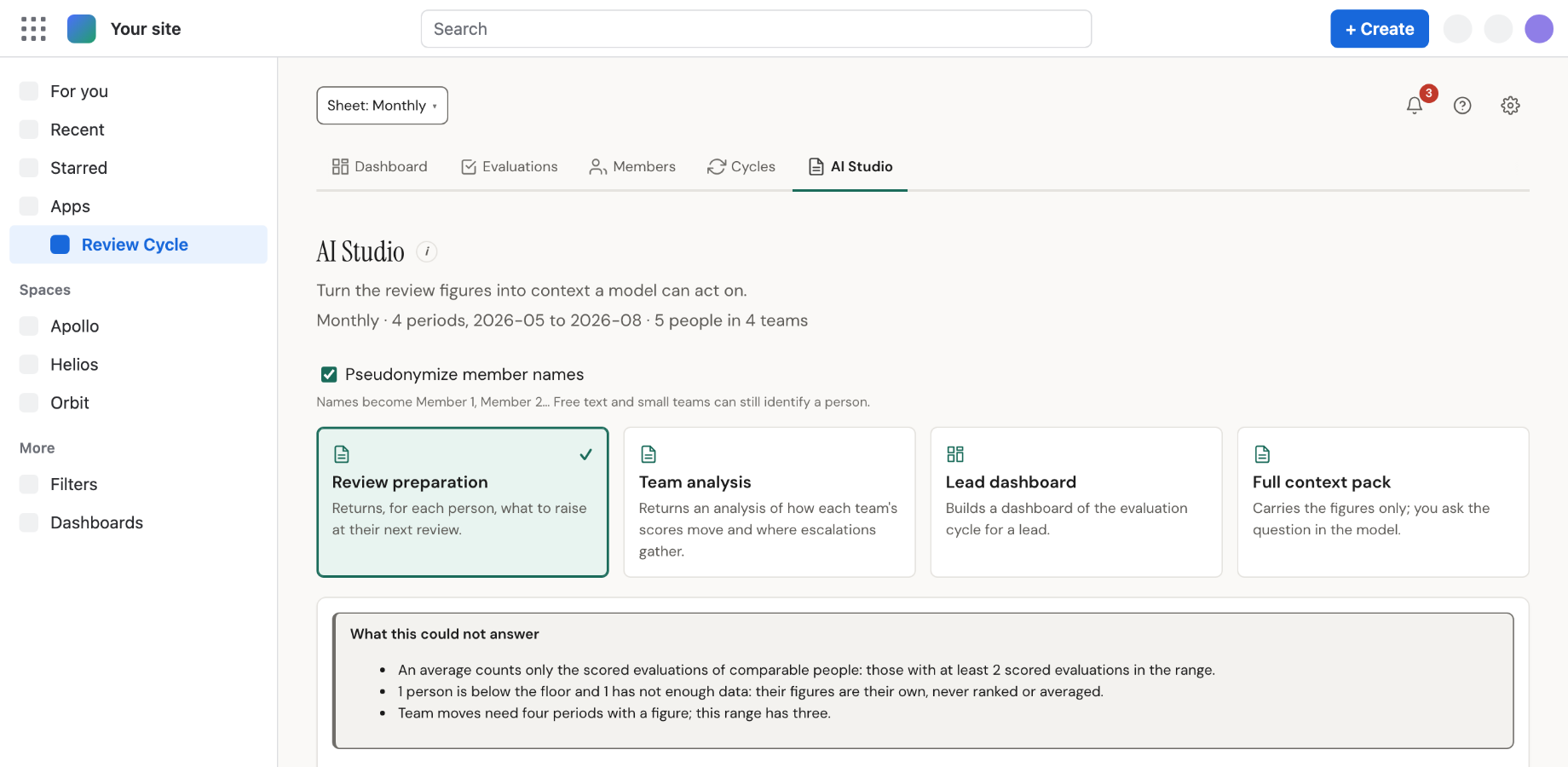
AI Studio turns the review figures into a prompt for the model you choose. Four cards: Review preparation, Team analysis, Lead dashboard and Full context pack. The prompt carries only what the Dashboard shows (scope, cycles, teams, signals) and a list of what the figures could not answer, with a size estimate.
- Pseudonymize member names is on by default.
- The app never calls a model. It prepares text you may copy or download, and sends it nowhere itself.
The Rovo agent
On a site with Rovo, Review Cycle's agent answers questions about an evaluation cycle from the site's team figures only, never about a person: progress by state, each team's average with how many people it counts, escalations, per period and per block. It reads; it changes nothing.
- Off by default. An administrator turns it on under Configuration, Rovo.
- It answers only a holder of Use or Administer who sees at least one member.
- Its name is visible to everyone on the site with Rovo, as every Rovo agent's is.
Questions it is made for: How are the teams' review scores moving on the monthly sheet? Which team's average moved most over the last periods? Where do escalations gather in this evaluation cycle? How far along is the current evaluation cycle?
For administrators
The administrator is the holder of Review Cycle · Administer. Configuration (Jira settings, Apps, Review Cycle) holds seven sections:
- Sheets: each sheet on its own page, with its blocks, questions, calendar and closing rules. A sheet is edited as a draft and released by a publish. An evaluation keeps the questionnaire version it was created against for its whole life, so a corrected rubric restates no score already given.
- Blocks: groups of questions by business area. A block's score is the mean of its answers.
- Questions: the question bank. Choice or text answers; each option carries its points, from 0 to 10.
- Roles: the site's role levels and member roles, chosen from a list.
- Teams and access: each team, created from one of the site's Atlassian Teams, with its leads, its leads who only fill in, and who else sees it.
- Signals: the thresholds every signal is judged by.
- Rovo: the switch that turns the Rovo agent on or off.
Permissions, data and privacy
Scopes
storage:app: keep the evaluations, the sheets and the site's configuration.read:jira-user: show people by their Jira name and photo, and pick them from Jira's users.read:jira-work: show, beside an evaluation, the work its member completed and worked on in the period.view:team:teams: create a team from one of the site's Atlassian Teams.view:membership:teams: required withview:team:teamsfor the Teams query to answer; membership is never read.
Review Cycle requests no write scopes: it writes nothing to Jira.
What Review Cycle stores
Review Cycle holds evaluations of named employees, entered by their leads: answers to a questionnaire, scores, narratives, dated observations, escalation reasons and probation verdicts, and each member's role level, roles, team and evaluators. This is personal data about employees.
Where the data stays
- Forge storage, within Atlassian. Records are kept in Forge Custom Entities and configuration in Forge storage. The app has no remote backend.
- No egress. The app declares no external fetch permission and makes no external calls. It is built to qualify for Atlassian's Runs on Atlassian programme.
- Processed within Atlassian. Figures are computed in Forge functions (including a daily scheduled job that opens each period's evaluations) and in your browser.
- Logs. Forge platform logs only, under Atlassian's retention. LeadFrame keeps no log store, and the app logs no evaluation content.
- No sub-processors besides Atlassian.
- LeadFrame acts as processor for the Jira data and the evaluations.
- The person evaluated sees nothing of their own evaluations in this version. Only holders of the app's two permissions see the app at all.
What can leave the app, and only by a user's action
- The CSV export: scores and periods, no answer to any question. The quarterly sheet's manager-only answer is excluded by construction.
- AI Studio text, copied or downloaded by the user, with member names pseudonymised by default.
- Rovo answers: team figures, never a person's, and only while an administrator has turned the agent on.
Read more in the Privacy Policy and on the Security page.
Licensing
Review Cycle is a paid app, sold and billed through the Atlassian Marketplace (Paid via Atlassian). It is free for sites of 1 to 10 users. Prices for larger sites are shown on the Marketplace listing.
Uninstall
A Jira administrator uninstalls Review Cycle from Jira administration: Apps, then Manage apps, then Review Cycle, then Uninstall.
Review Cycle keeps its data only in Forge storage, within Atlassian; LeadFrame holds no copy outside it. If you want to keep the figures, export the CSV of scores and periods from the Dashboard or the Board before you uninstall.
Responsible use
- A reading order, not a rank. People are listed by average so they can be read in turn, never ranked against each other.
- A band is a position on your site's scale, not a verdict on the person.
- Activity is context. The Jira work shown beside an evaluation never feeds a score.
- A figure the app cannot stand behind is named, not scored. People with too few scored evaluations are listed apart and kept out of every average.
- Pseudonymization. AI Studio pseudonymises member names by default, and the Rovo agent answers about teams only.
Support
- Help center: support.leadframeapp.com
- Email: support@leadframeapp.com
- Hours: Monday to Friday, 9:00 to 18:00 GMT+1
- Response time: within 2 business days
Inside the app, Help opens the user manual at the page you are on.